Make Your Phone Boring to Stop Distractions

If you’ve ever opened Instagram, TikTok—or one of these, “just for a minute” and looked up 40 minutes later, you already know. These apps are real loopholes that make you lose all sense of time. They’re designed to feel vibrant, fast, and endlessly new — and that’s exactly the point.
Ideas & Tips

Jan 23, 2026

5 min

What if I told you there’s a simple, free, and effective way to drastically cut down your screen time? Just one small setting that could help you win back dozens—maybe even hours—of your life?

It’s as easy as switching your iPhone to black-and-white mode, but only when you open your distracting apps (not all the time). You still get to enjoy your apps and their features, keep your data safe, and the best part… it’s completely free!

By the way, I’m Thomas, co-founder of Jomo. Over the last 4 years, I’ve spent most of my time thinking about screen time habits and building an app used by more than 250,000 people. Everything you’ll read here is directly inspired by what we’ve learned from helping people reduce doomscrolling in real life, not in theory.

Why These Apps Pull You in (And Won’t Stop)

Their Business Model Rewards Time Spent

For ad-funded platforms, attention is revenue. That’s not cynicism—it’s the math.
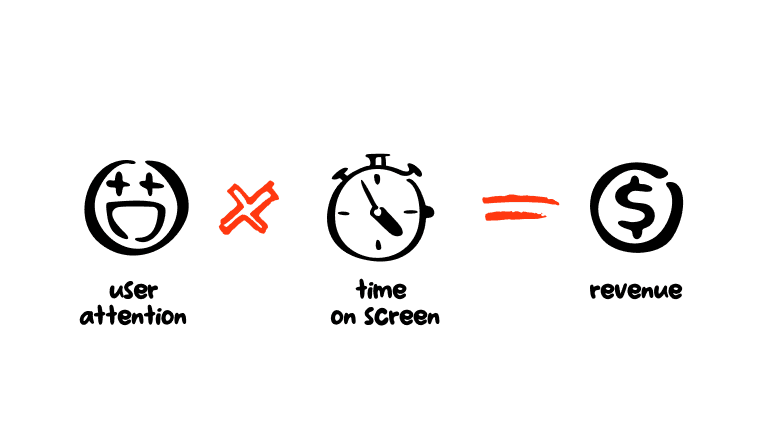
YouTube’s own leadership has said the majority of viewing comes from recommendations, a system tuned to maximize watch time because watch time maximizes ad impressions. In 2018, press reports quoted YouTube’s then-CPO saying about 70% of watch time comes from what the algorithm suggests next. 

The machine-learning models help identify videos that aren’t exactly what you just watched, but similar enough that you might like them. 

TikTok takes this even further: its For You page reacts strongly to how long you watch, reinforcing the kinds of clips that keep you staring. Independent investigations found the algorithm can keep pushing more of what holds your gaze; watch time is the key signal. 

According to the WSJ, TikTok identified the interests of some of the bots in as few as 40 minutes. One of the bots fell into a rabbit hole of depressive videos, while another ended up at videos about election conspiracies.

None of this is an accident. The underlying objective function is engagementso you’ll always see designs that reduce friction and increase time on feed.

The Interface Patterns Are Engineered to Be Bottomless

  • Infinite scroll removes natural stopping cues (no page breaks, no “next page” button). Aza Raskin, who popularized the pattern, has publicly expressed regret about how well it keeps people scrolling. 

  • Autoplay nudges you into “just one more.” It’s deliberately seamless. 

  • Ever-fresh recommendations beat your self-control by instantly serving the next shiny thing that’s most likely to hook you, based on millions of data points. 

Design ethicists like Tristan Harris have argued for years that these mechanics “hijack” human attention—not because users are weak, but because the systems are optimized to exploit our cognitive defaults. 

If you’re an app, how do you keep people hooked? Turn yourself into a slot machine. — Tristan Harris
Color Is a Powerful (And Underrated) Attention Lever

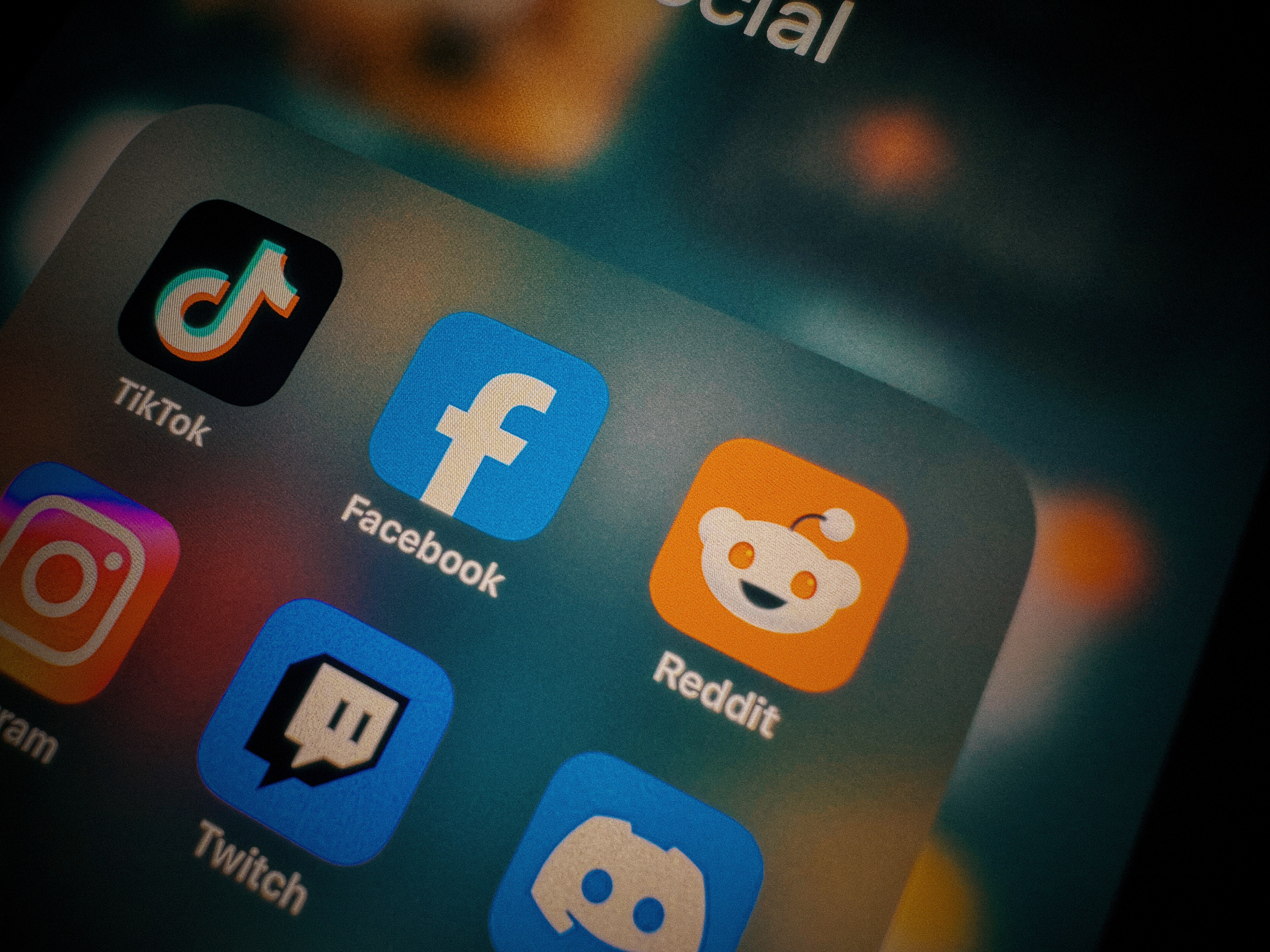
Color is not just decoration; it shapes emotional arousal and perceived pleasantness. Classic lab studies show that saturation and brightness predict emotional responses (e.g., more saturated colors = more arousal). Marketing research also links color to attention, memory, and choice. In short: vivid color is designed to pop. 

When your feed is a fireworks show of saturated thumbnails, badges, and buttons, your brain leans in.

What if I told you there’s a simple, free, and effective way to drastically cut down your screen time? Just one small setting that could help you win back dozens—maybe even hours—of your life?

It’s as easy as switching your iPhone to black-and-white mode, but only when you open your distracting apps (not all the time). You still get to enjoy your apps and their features, keep your data safe, and the best part… it’s completely free!

By the way, I’m Thomas, co-founder of Jomo. Over the last 4 years, I’ve spent most of my time thinking about screen time habits and building an app used by more than 250,000 people. Everything you’ll read here is directly inspired by what we’ve learned from helping people reduce doomscrolling in real life, not in theory.

Why These Apps Pull You in (And Won’t Stop)

Their Business Model Rewards Time Spent

For ad-funded platforms, attention is revenue. That’s not cynicism—it’s the math.

YouTube’s own leadership has said the majority of viewing comes from recommendations, a system tuned to maximize watch time because watch time maximizes ad impressions. In 2018, press reports quoted YouTube’s then-CPO saying about 70% of watch time comes from what the algorithm suggests next. 

The machine-learning models help identify videos that aren’t exactly what you just watched, but similar enough that you might like them. 

TikTok takes this even further: its For You page reacts strongly to how long you watch, reinforcing the kinds of clips that keep you staring. Independent investigations found the algorithm can keep pushing more of what holds your gaze; watch time is the key signal. 

According to the WSJ, TikTok identified the interests of some of the bots in as few as 40 minutes. One of the bots fell into a rabbit hole of depressive videos, while another ended up at videos about election conspiracies.

None of this is an accident. The underlying objective function is engagementso you’ll always see designs that reduce friction and increase time on feed.

The Interface Patterns Are Engineered to Be Bottomless

  • Infinite scroll removes natural stopping cues (no page breaks, no “next page” button). Aza Raskin, who popularized the pattern, has publicly expressed regret about how well it keeps people scrolling. 

  • Autoplay nudges you into “just one more.” It’s deliberately seamless. 

  • Ever-fresh recommendations beat your self-control by instantly serving the next shiny thing that’s most likely to hook you, based on millions of data points. 

Design ethicists like Tristan Harris have argued for years that these mechanics “hijack” human attention—not because users are weak, but because the systems are optimized to exploit our cognitive defaults. 

If you’re an app, how do you keep people hooked? Turn yourself into a slot machine. — Tristan Harris

Color Is a Powerful (And Underrated) Attention Lever

Color is not just decoration; it shapes emotional arousal and perceived pleasantness. Classic lab studies show that saturation and brightness predict emotional responses (e.g., more saturated colors = more arousal). Marketing research also links color to attention, memory, and choice. In short: vivid color is designed to pop. 

When your feed is a fireworks show of saturated thumbnails, badges, and buttons, your brain leans in.

What if I told you there’s a simple, free, and effective way to drastically cut down your screen time? Just one small setting that could help you win back dozens—maybe even hours—of your life?

It’s as easy as switching your iPhone to black-and-white mode, but only when you open your distracting apps (not all the time). You still get to enjoy your apps and their features, keep your data safe, and the best part… it’s completely free!

By the way, I’m Thomas, co-founder of Jomo. Over the last 4 years, I’ve spent most of my time thinking about screen time habits and building an app used by more than 250,000 people. Everything you’ll read here is directly inspired by what we’ve learned from helping people reduce doomscrolling in real life, not in theory.

Why These Apps Pull You in (And Won’t Stop)

Their Business Model Rewards Time Spent

For ad-funded platforms, attention is revenue. That’s not cynicism—it’s the math.

YouTube’s own leadership has said the majority of viewing comes from recommendations, a system tuned to maximize watch time because watch time maximizes ad impressions. In 2018, press reports quoted YouTube’s then-CPO saying about 70% of watch time comes from what the algorithm suggests next. 

The machine-learning models help identify videos that aren’t exactly what you just watched, but similar enough that you might like them. 

TikTok takes this even further: its For You page reacts strongly to how long you watch, reinforcing the kinds of clips that keep you staring. Independent investigations found the algorithm can keep pushing more of what holds your gaze; watch time is the key signal. 

According to the WSJ, TikTok identified the interests of some of the bots in as few as 40 minutes. One of the bots fell into a rabbit hole of depressive videos, while another ended up at videos about election conspiracies.

None of this is an accident. The underlying objective function is engagementso you’ll always see designs that reduce friction and increase time on feed.

The Interface Patterns Are Engineered to Be Bottomless

  • Infinite scroll removes natural stopping cues (no page breaks, no “next page” button). Aza Raskin, who popularized the pattern, has publicly expressed regret about how well it keeps people scrolling. 

  • Autoplay nudges you into “just one more.” It’s deliberately seamless. 

  • Ever-fresh recommendations beat your self-control by instantly serving the next shiny thing that’s most likely to hook you, based on millions of data points. 

Design ethicists like Tristan Harris have argued for years that these mechanics “hijack” human attention—not because users are weak, but because the systems are optimized to exploit our cognitive defaults. 

If you’re an app, how do you keep people hooked? Turn yourself into a slot machine. — Tristan Harris

Color Is a Powerful (And Underrated) Attention Lever

Color is not just decoration; it shapes emotional arousal and perceived pleasantness. Classic lab studies show that saturation and brightness predict emotional responses (e.g., more saturated colors = more arousal). Marketing research also links color to attention, memory, and choice. In short: vivid color is designed to pop. 

When your feed is a fireworks show of saturated thumbnails, badges, and buttons, your brain leans in.

Your phone, your rules. Block on command and own your time.

Your phone, your rules. Block on command and own your time.

Your phone, your rules. Block on command and own your time.

Why Switch to Black-And-White Only after Opening Certain Apps?

Keeping your phone in grayscale all day works for some people—until you need color for photos or maps. An “on-open” automation gives you contextual friction:

  • Your home screen and camera can stay colorful.

  • Instagram, TikTok, YouTube (or any other “loophole” apps) instantly turn drab the moment you enter.

  • When you close those apps, color comes back automatically.

You’re not fighting willpower endlessly. You’re just making your most tempting apps… boring.

Set It Up

For this, you’ll need the “Shortcuts” app — it’s free and available on every iPhone (developed by Apple). Then, we’ll create two Automations:

  1. “App is opened” Turn Color Filters (Grayscale) ON

  2. “App is closed”Turn Color Filters OFF

Before You Start (One-Time Prep)

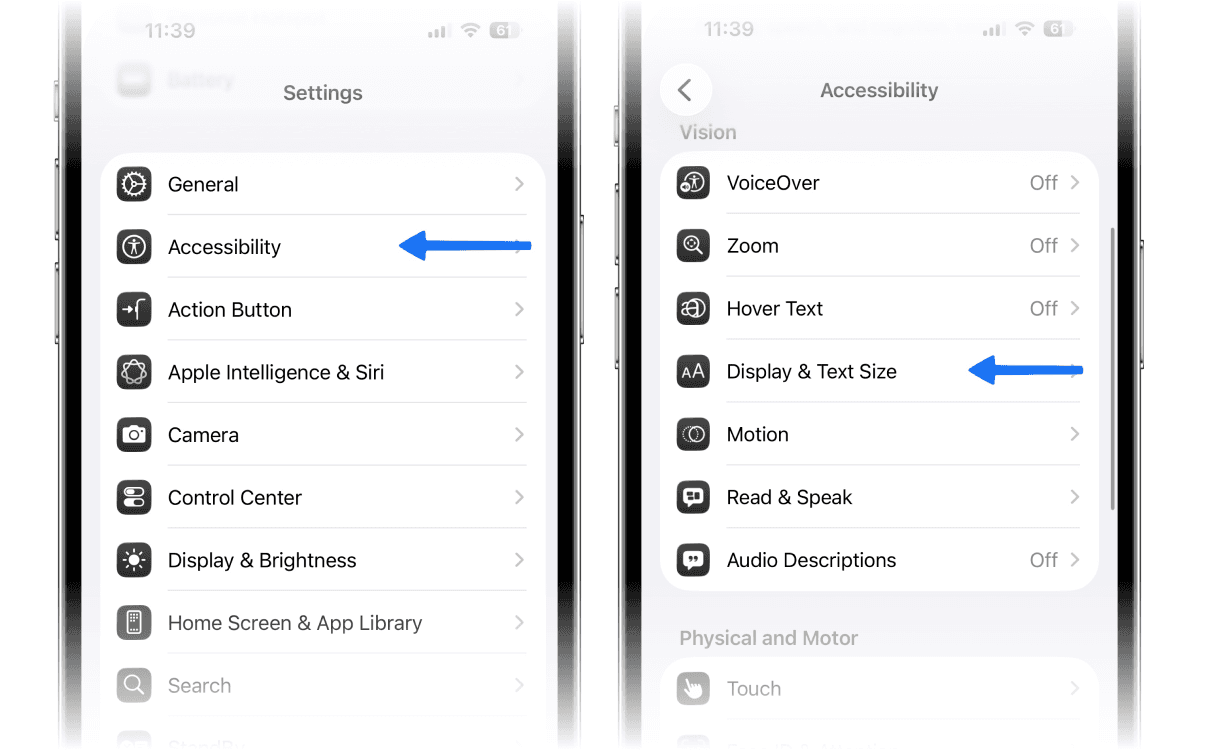
Open SettingsAccessibilityDisplay & Text SizeColor Filters.

  1. Turn Color Filters On, then select Grayscale.

  2. Turn Color Filters Off again—we’ll let Shortcuts handle switching it on later.  
#1 — Turn Grayscale on When You Open Selected Apps

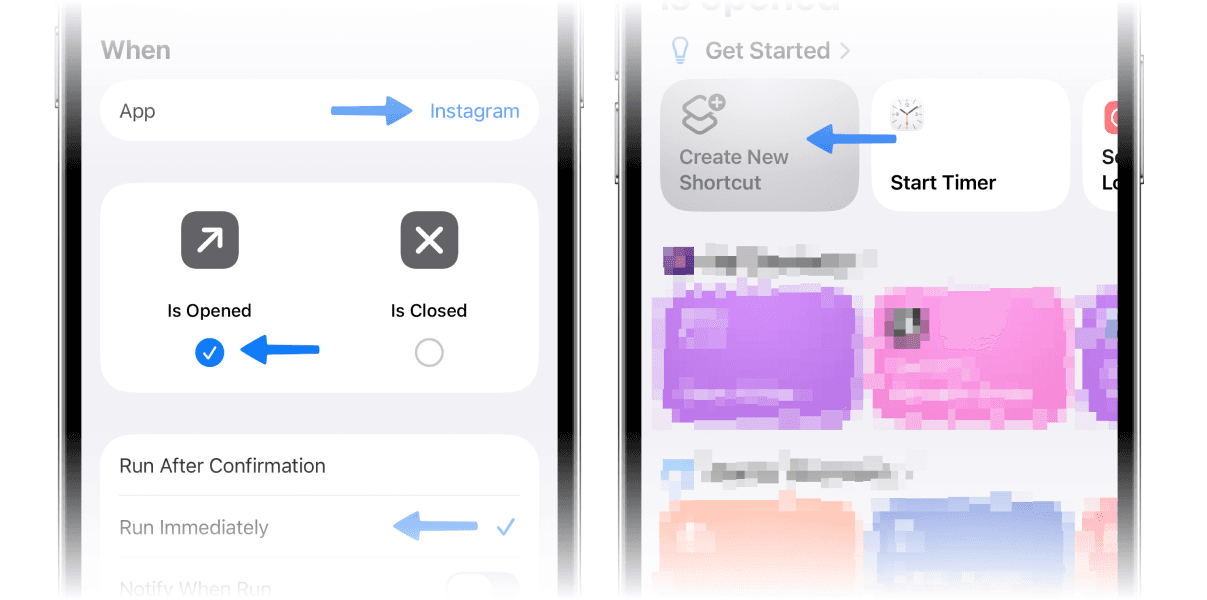
  1. Open ShortcutsAutomationNew Personal Automation.

  2. Select App.

  3. Tap Choose and select, for example, Instagram, TikTok, YouTube (you can add more later).

  4. Ensure Is Opened is selected; check Run immediately, then press Next.

  5. Press Create New Shortcut.

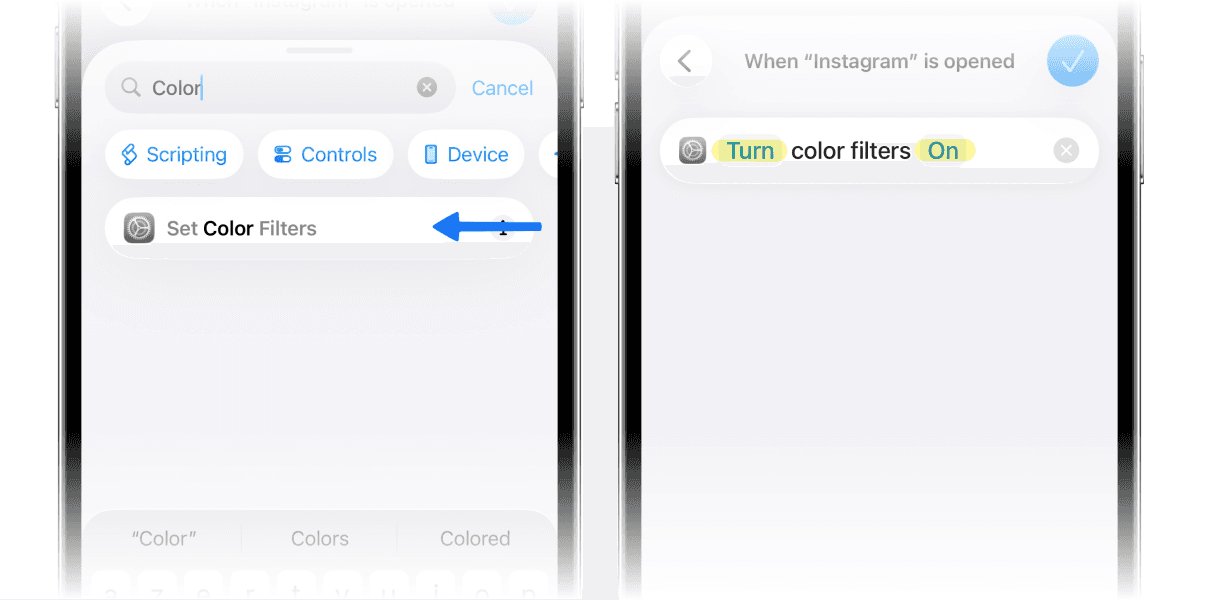
  6. In the search bar, type Set Colors Filters, then select it.

  7. Set to Turn […] On, then press the blue check.  

Now we’ll do the same thing, but the other way around — to turn off grayscale mode when you leave one of these apps.

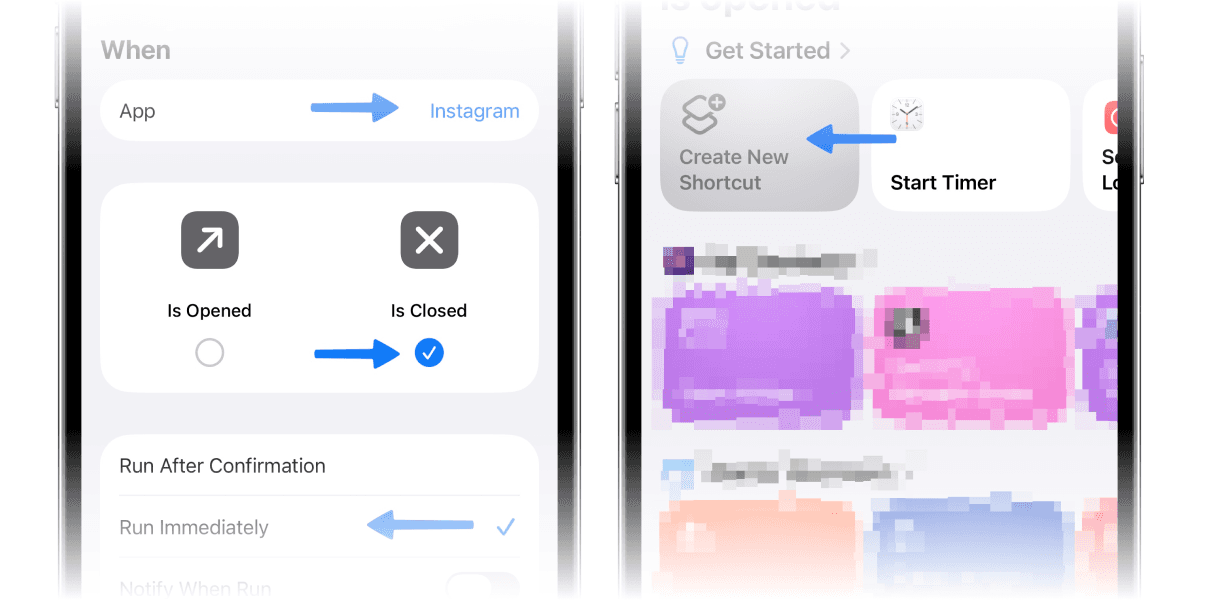
  1. Open ShortcutsAutomationNew Personal Automation.

  2. Select App.

  3. Tap Choose and select the same apps as before.

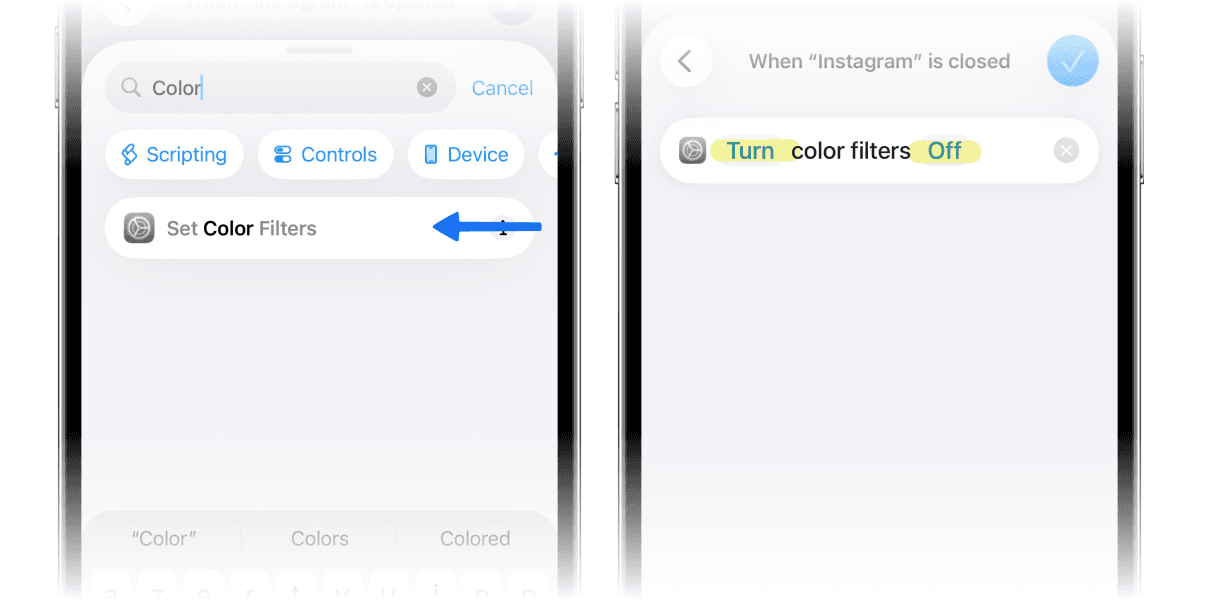
  4. Ensure Is Closed is selected; check Run immediately, then press Next.

  5. Press Create New Shortcut.

  6. In the search bar, type Set Colors Filters, then select it.

  7. Set to Turn […] Off, then press the blue check.  

Too Easy? Make It Stronger

As a complement, we recommend adding a “Continuous” session in Jomo, available for free on iPhone, iPad, and Mac. The concept is simple: by default, your distracting apps are blocked, and you’ll need to ask Jomo for permission to use them.  

After completing a short exercise of your choice, you’ll be able to access them — but with a timer! Perfect for avoiding endless scrolling while still being able to reply to DMs or keep up with your favorite creators.  

How to Do It in Jomo? 

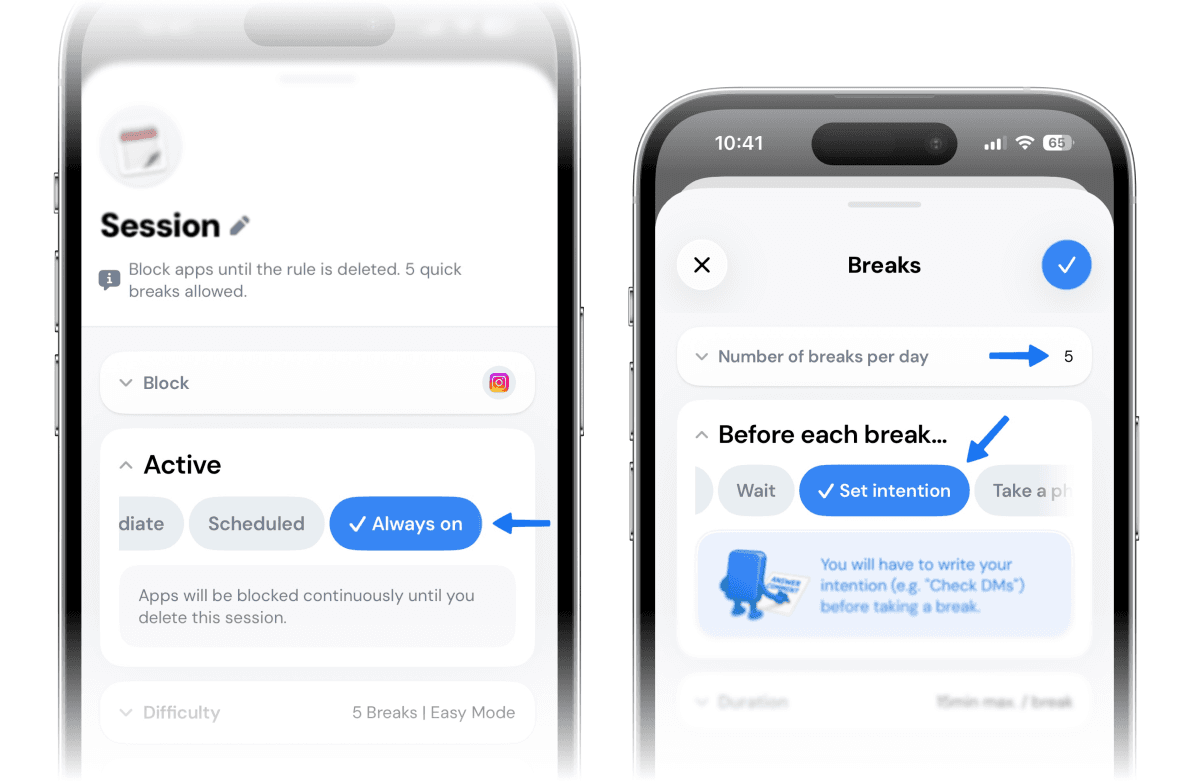
  1. Download Jomo for free from the App Store.  

  2. Go to Rules+Recurring session.  

  3. In BlockSelect the apps you want to block.  

  4. In Active → Choose Always-On

  5. In BreaksEnable, then under Before each breakSelect Intention.  

  6. Finally, tap Start.

That two-layer approach—make it boring + make it intentional—is remarkably effective in real life.

A Friendly Reminder about Expectations

  1. You don’t have to be perfect. Your goal is less pull, not zero slip-ups.

  2. Grayscale won’t fix everything. It does lower visual reward, and studies show it often reduces use, but it’s just one tool. Combine it with app limits, better notification management, and this little “always-on” blocking trick when you need it. 

  3. Celebrate small wins: 10 minutes less per day adds up to ~60 hours a year.

Thanks for reading so far! If you want to give my app Jomo a try, download it from the App Store and use my code JZ5RP5 to try the Plus plan for 14 days.

Why Switch to Black-And-White Only after Opening Certain Apps?

Keeping your phone in grayscale all day works for some people—until you need color for photos or maps. An “on-open” automation gives you contextual friction:

  • Your home screen and camera can stay colorful.

  • Instagram, TikTok, YouTube (or any other “loophole” apps) instantly turn drab the moment you enter.

  • When you close those apps, color comes back automatically.

You’re not fighting willpower endlessly. You’re just making your most tempting apps… boring.

Set It Up

For this, you’ll need the “Shortcuts” app — it’s free and available on every iPhone (developed by Apple). Then, we’ll create two Automations:

  1. “App is opened” Turn Color Filters (Grayscale) ON

  2. “App is closed”Turn Color Filters OFF

Before You Start (One-Time Prep)

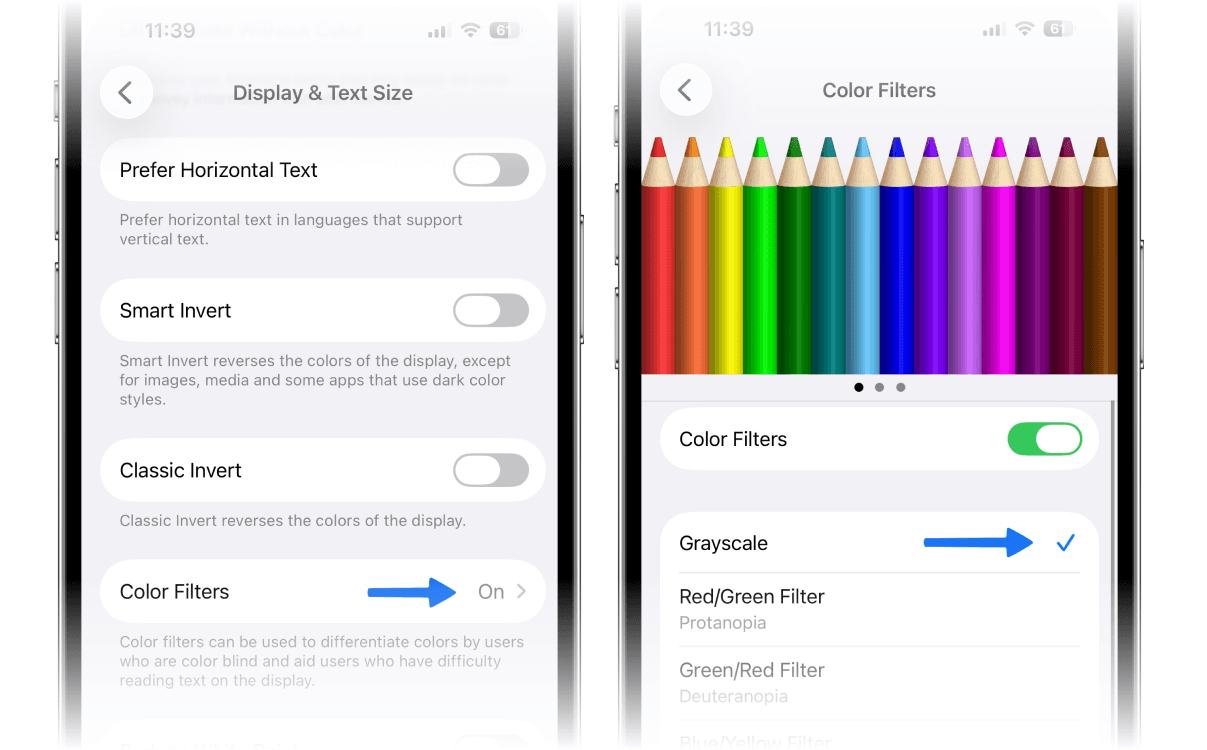
Open SettingsAccessibilityDisplay & Text SizeColor Filters.

  1. Turn Color Filters On, then select Grayscale.

  2. Turn Color Filters Off again—we’ll let Shortcuts handle switching it on later.  
#1 — Turn Grayscale on When You Open Selected Apps

  1. Open ShortcutsAutomationNew Personal Automation.

  2. Select App.

  3. Tap Choose and select, for example, Instagram, TikTok, YouTube (you can add more later).

  4. Ensure Is Opened is selected; check Run immediately, then press Next.

  5. Press Create New Shortcut.

  6. In the search bar, type Set Colors Filters, then select it.

  7. Set to Turn […] On, then press the blue check.  
Now we’ll do the same thing, but the other way around — to turn off grayscale mode when you leave one of these apps.

  1. Open ShortcutsAutomationNew Personal Automation.

  2. Select App.

  3. Tap Choose and select the same apps as before.

  4. Ensure Is Closed is selected; check Run immediately, then press Next.

  5. Press Create New Shortcut.

  6. In the search bar, type Set Colors Filters, then select it.

  7. Set to Turn […] Off, then press the blue check.  

Too Easy? Make It Stronger

As a complement, we recommend adding a “Continuous” session in Jomo, available for free on iPhone, iPad, and Mac. The concept is simple: by default, your distracting apps are blocked, and you’ll need to ask Jomo for permission to use them.  

After completing a short exercise of your choice, you’ll be able to access them — but with a timer! Perfect for avoiding endless scrolling while still being able to reply to DMs or keep up with your favorite creators.  

How to Do It in Jomo? 

  1. Download Jomo for free from the App Store.  

  2. Go to Rules+Recurring session.  

  3. In BlockSelect the apps you want to block.  

  4. In Active → Choose Always-On

  5. In BreaksEnable, then under Before each breakSelect Intention.  

  6. Finally, tap Start.

That two-layer approach—make it boring + make it intentional—is remarkably effective in real life.

A Friendly Reminder about Expectations

  1. You don’t have to be perfect. Your goal is less pull, not zero slip-ups.

  2. Grayscale won’t fix everything. It does lower visual reward, and studies show it often reduces use, but it’s just one tool. Combine it with app limits, better notification management, and this little “always-on” blocking trick when you need it. 

  3. Celebrate small wins: 10 minutes less per day adds up to ~60 hours a year.

Thanks for reading so far! If you want to give my app Jomo a try, download it from the App Store and use my code JZ5RP5 to try the Plus plan for 14 days.

Why Switch to Black-And-White Only after Opening Certain Apps?

Keeping your phone in grayscale all day works for some people—until you need color for photos or maps. An “on-open” automation gives you contextual friction:

  • Your home screen and camera can stay colorful.

  • Instagram, TikTok, YouTube (or any other “loophole” apps) instantly turn drab the moment you enter.

  • When you close those apps, color comes back automatically.

You’re not fighting willpower endlessly. You’re just making your most tempting apps… boring.

Set It Up

For this, you’ll need the “Shortcuts” app — it’s free and available on every iPhone (developed by Apple). Then, we’ll create two Automations:

  1. “App is opened” Turn Color Filters (Grayscale) ON

  2. “App is closed”Turn Color Filters OFF

Before You Start (One-Time Prep)

Open SettingsAccessibilityDisplay & Text SizeColor Filters.

  1. Turn Color Filters On, then select Grayscale.

  2. Turn Color Filters Off again—we’ll let Shortcuts handle switching it on later.  

#1 — Turn Grayscale on When You Open Selected Apps

  1. Open ShortcutsAutomationNew Personal Automation.

  2. Select App.

  3. Tap Choose and select, for example, Instagram, TikTok, YouTube (you can add more later).

  4. Ensure Is Opened is selected; check Run immediately, then press Next.

  5. Press Create New Shortcut.

  6. In the search bar, type Set Colors Filters, then select it.

  7. Set to Turn […] On, then press the blue check.  
Now we’ll do the same thing, but the other way around — to turn off grayscale mode when you leave one of these apps.

  1. Open ShortcutsAutomationNew Personal Automation.

  2. Select App.

  3. Tap Choose and select the same apps as before.

  4. Ensure Is Closed is selected; check Run immediately, then press Next.

  5. Press Create New Shortcut.

  6. In the search bar, type Set Colors Filters, then select it.

  7. Set to Turn […] Off, then press the blue check.  
Too Easy? Make It Stronger

As a complement, we recommend adding a “Continuous” session in Jomo, available for free on iPhone, iPad, and Mac. The concept is simple: by default, your distracting apps are blocked, and you’ll need to ask Jomo for permission to use them.  

After completing a short exercise of your choice, you’ll be able to access them — but with a timer! Perfect for avoiding endless scrolling while still being able to reply to DMs or keep up with your favorite creators.  

How to Do It in Jomo? 

  1. Download Jomo for free from the App Store.  

  2. Go to Rules+Recurring session.  

  3. In BlockSelect the apps you want to block.  

  4. In Active → Choose Always-On

  5. In BreaksEnable, then under Before each breakSelect Intention.  

  6. Finally, tap Start.

That two-layer approach—make it boring + make it intentional—is remarkably effective in real life.

A Friendly Reminder about Expectations

  1. You don’t have to be perfect. Your goal is less pull, not zero slip-ups.

  2. Grayscale won’t fix everything. It does lower visual reward, and studies show it often reduces use, but it’s just one tool. Combine it with app limits, better notification management, and this little “always-on” blocking trick when you need it. 

  3. Celebrate small wins: 10 minutes less per day adds up to ~60 hours a year.

Thanks for reading so far! If you want to give my app Jomo a try, download it from the App Store and use my code JZ5RP5 to try the Plus plan for 14 days.

Credits
Photographies by Unsplash. Screenshots by Jomo.

The Joy Of Missing Out

Crafted in Europe

All rights reserved to Jomo SAS, 2026

The Joy Of Missing Out

Crafted in Europe

All rights reserved to Jomo SAS, 2026

The Joy Of Missing Out

Crafted in Europe

All rights reserved to Jomo SAS, 2026