Guide
5 min
How to Replace Social Media with Scripture (Free & Easy)
You don’t need more willpower to spend less time on social media. You (just) need to make reading the Word the easier choice.

Right now, your phone makes scrolling effortless. Instagram, TikTok, YouTube, Reddit, and the news are always one tap away… Reading the Bible requires a conscious decision, so it is easy to postpone until later.
The good news is that you can actually reconfigure your phone to reverse this and develop a long term habit of engaging with Scripture.
In this short guide, you will learn 3 effective (and free!) ways to block distracting apps until you have spent time reading Scripture:
Read the Bible for a few minutes, then unlock your apps.
Earn more social media time by reading the Bible.
Read a physical Bible and prove it with a photo to unlock your apps.
All three methods are free to set up with Jomo, an award-winning app blocker trusted by more than 300,000 people. Let's get started!
The Quickest Way to Read the Bible Before Scrolling
If you want the simplest option, start here:
Select the apps you want to block (social media, games, etc.).
Choose the Bible app you already use.
Decide how long you want to read (five minutes is a good starting point).
Save your rule.
From then on, your distracting apps will stay blocked until you’ve spent the required time in your Bible app.
And that’s pretty much it. It might sound a little goofy at first, but there’s a good reason it works.
Why This Method Works
Most attempts to change a habit begin with a promise to ourselves:
“Tomorrow morning, I’ll resist Instagram (and every other distraction on my phone) and read the Bible instead!”
All of us, every few weeks.
Maybe that works for a few days. But when you’re tired, busy, or stressed, resisting the pull of your phone gets much harder (you know the feeling). Relying on willpower every day is… exhausting.
Reconfiguring your phone changes the environment around the habit. Instead of asking yourself to make the right choice every time, you make Scripture the path of least resistance.
This approach lines up neatly with James Clear’s Four Laws of Behavior Change:
Make it obvious: When you try to open a blocked app, your phone reminds you to read Scripture first.
Make it attractive: Bible reading is paired with something you already want: access to your chosen apps.
Make it easy: A small target, such as five minutes, lowers the effort required to get started.
Make it satisfying: Completing your reading produces an immediate, visible result: your apps unlock.
Also remember that the goal is not to make social media your permanent reward for reading Scripture. This setup is simply a way to interrupt automatic scrolling and make Bible reading a more natural part of your day.
Before You Start: Choose Your Rule
First, decide what you want your phone to do.
Your goal | Best method |
|---|---|
Read the Bible once before using social media | Method 1 |
Balance social media time with Bible reading time | Method 2 |
Read a physical Bible instead of using an app | Method 3 |
You will also need to choose:
The apps to block: Instagram, TikTok, X, Reddit, YouTube, games, news apps, or anything else that tends to pull you in.
Your Bible app: choose whichever Bible app you already use and trust.
A realistic reading target: start with five minutes rather than thirty.
The days when the rule should apply: every day is the simplest option.

Method 1: Block Social Media Until You Read the Bible
This is the best option if your goal is simple: read the Bible before scrolling each day.
How to set it up
Complete the onboarding process and grant the required Screen Time permissions.
Open Jomo and go to the Rules tab.
Tap Start Blocking.
Select Complete Habits.
Open the Unblock section.
Select the apps you want to keep locked, such as Instagram, TikTok, Reddit, or YouTube.
Open the After section.
Select Completing.
Tap Add a Habit.
Select Use Good Apps.
Choose the Bible app you want to use.
Set the amount of time you want to spend in that app.
Choose the days when the rule should be active.
Tap Schedule to save the rule.
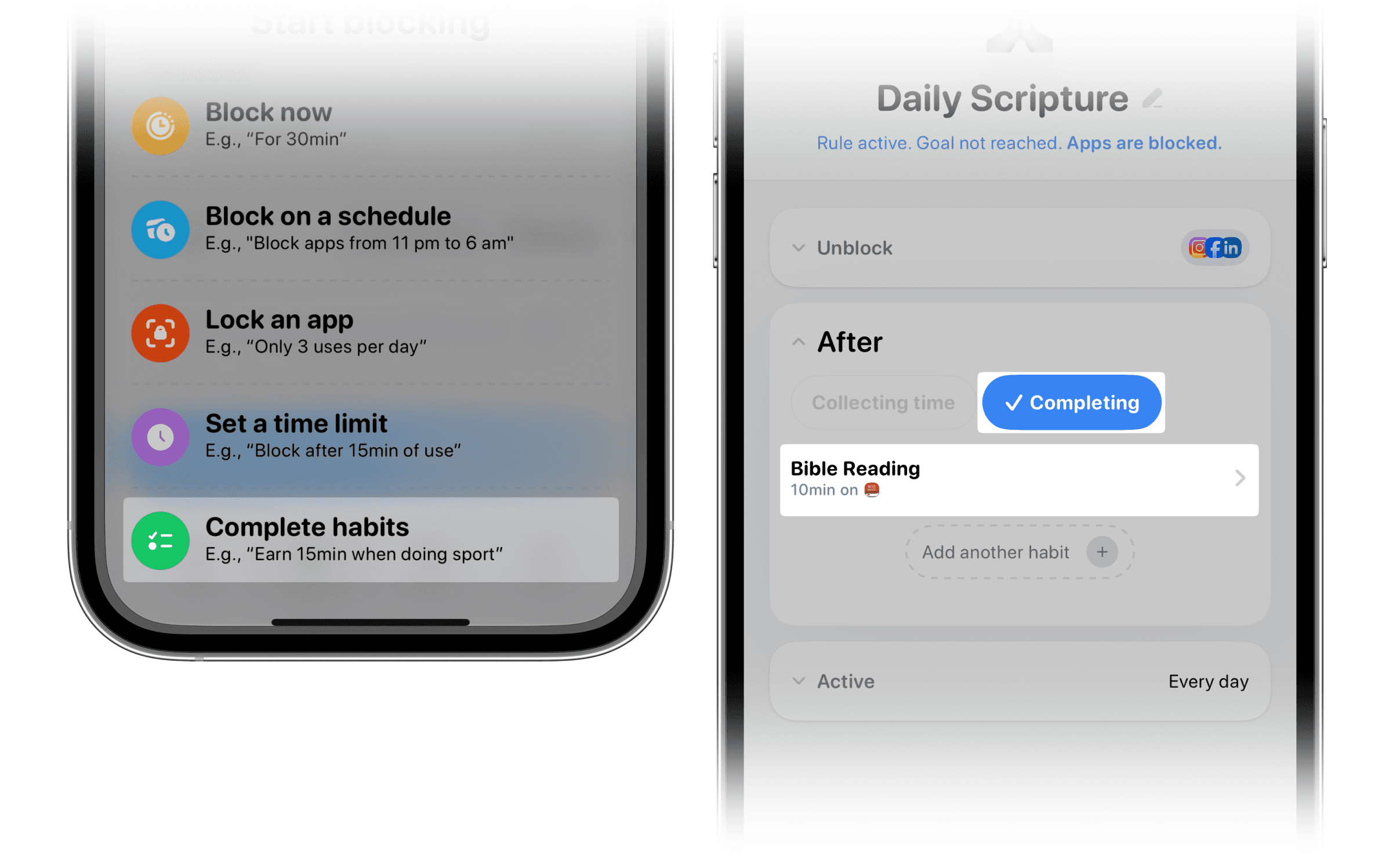
How the setup for Method 1 looks like in the Jomo app.
Our recommended starting setup
If you have not been reading the Bible regularly, use:
Five minutes of Bible reading
Once per day
Every day
Social media and entertainment apps only
Five minutes may feel small, but that is the point. Your first goal is not to complete an ambitious reading plan. It is to make opening Scripture before social media in the morning feel normal.
Once the habit becomes consistent, you can increase the target to ten or fifteen minutes.
Method 2: Earn Social Media Time by Reading Scripture
Method 1 is a once-a-day gate: finish your Bible reading, and your selected apps unlock.
Method 2 creates an ongoing exchange: the more time you spend reading Scripture, the more time you earn for distracting apps.
For example:
Ten minutes of Bible reading earns five minutes of social media.
This is a good fit if you don’t want to avoid social media entirely but would like your screen time to better reflect your priorities.
How to set it up
Open Jomo and go to Rules.
Tap Start Blocking.
Select Complete Habits.
In Unblock, choose the distracting apps you want to limit.
Open the After section.
Select Collecting Time.
Tap Add a Habit.
Choose Use Good Apps.
Select your Bible app.
Decide how much social media time each reading session should earn.
Choose the days when the rule should apply.
Tap Schedule.
You can also give yourself a small base allowance (say, ten minutes of social media each day) before you need to earn more time through Bible reading.
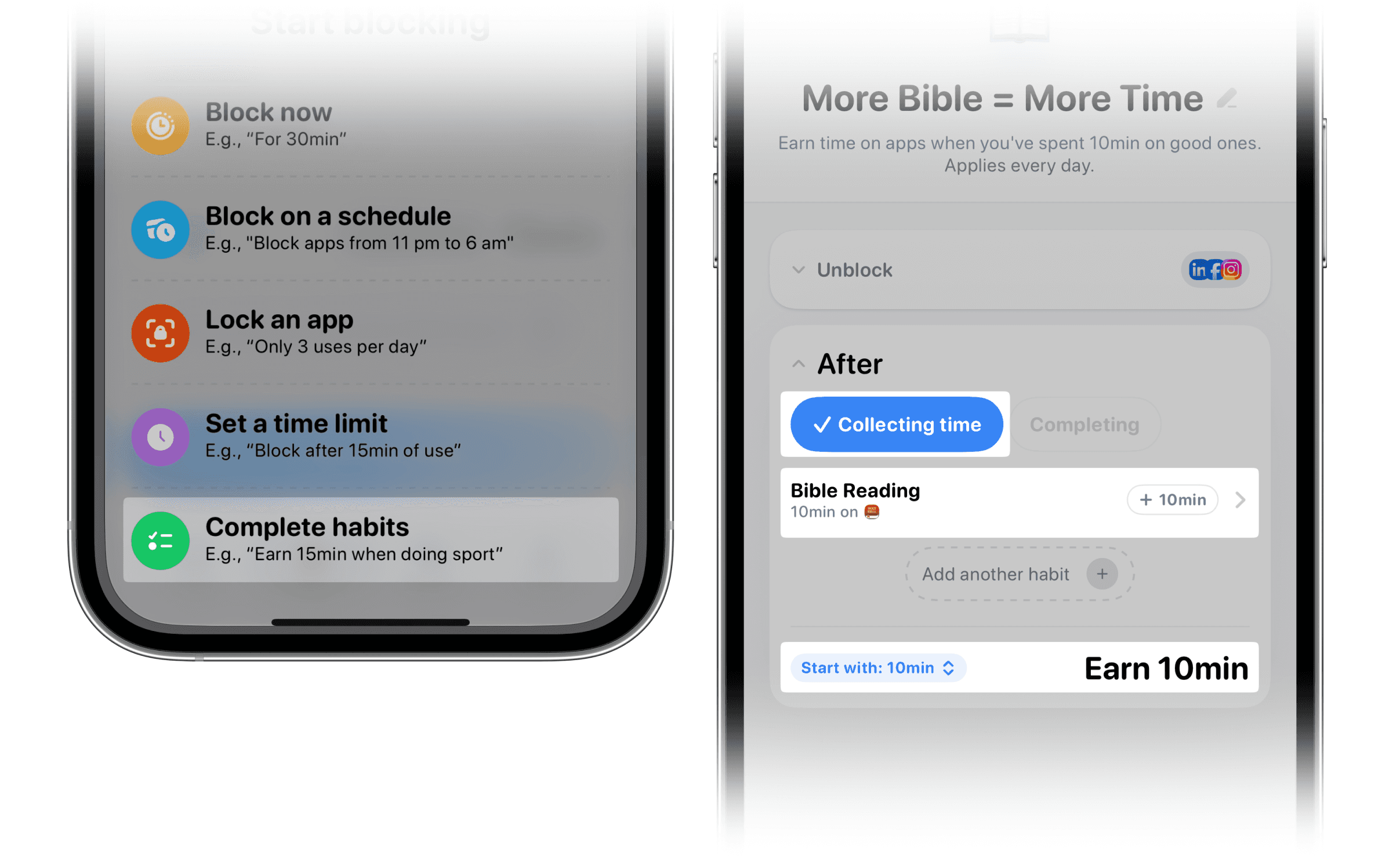
How the setup for Method 2 looks like in the Jomo app.
Choose a sustainable ratio
Do not make the system so strict that you immediately disable it.
A reasonable starting point might be:
Five minutes of reading earns five minutes of social media; or
Ten minutes of reading earns five minutes of social media.
Try the rule for one week before making it stricter.
If you frequently feel the need to bypass it, that usually means the settings are too demanding. Reduce the reading target or increase the time earned until the system feels sustainable.
Method 3: Unlock Apps by Reading a Physical Bible
You may not want to read Scripture on the same device you are trying to use less.
That is completely reasonable. A physical Bible removes notifications, tabs, messages, and the temptation to switch apps.
Jomo lets you use photo verification as the action required to unlock your apps.
How to set it up
Open your existing rule or create a new one (Start blocking > Complete habits).
Select the social media apps you want to block in Unblock.
Open the After section.
Tap Add a Habit.
Select Check With Photo.
When Jomo asks what the photo should verify, enter: “A physical Bible.”
Choose what completing the habit should unlock.
Select the days when the rule should apply.
Save the rule.
When you want to unlock your apps, Jomo will ask you to take a photo that matches the description.
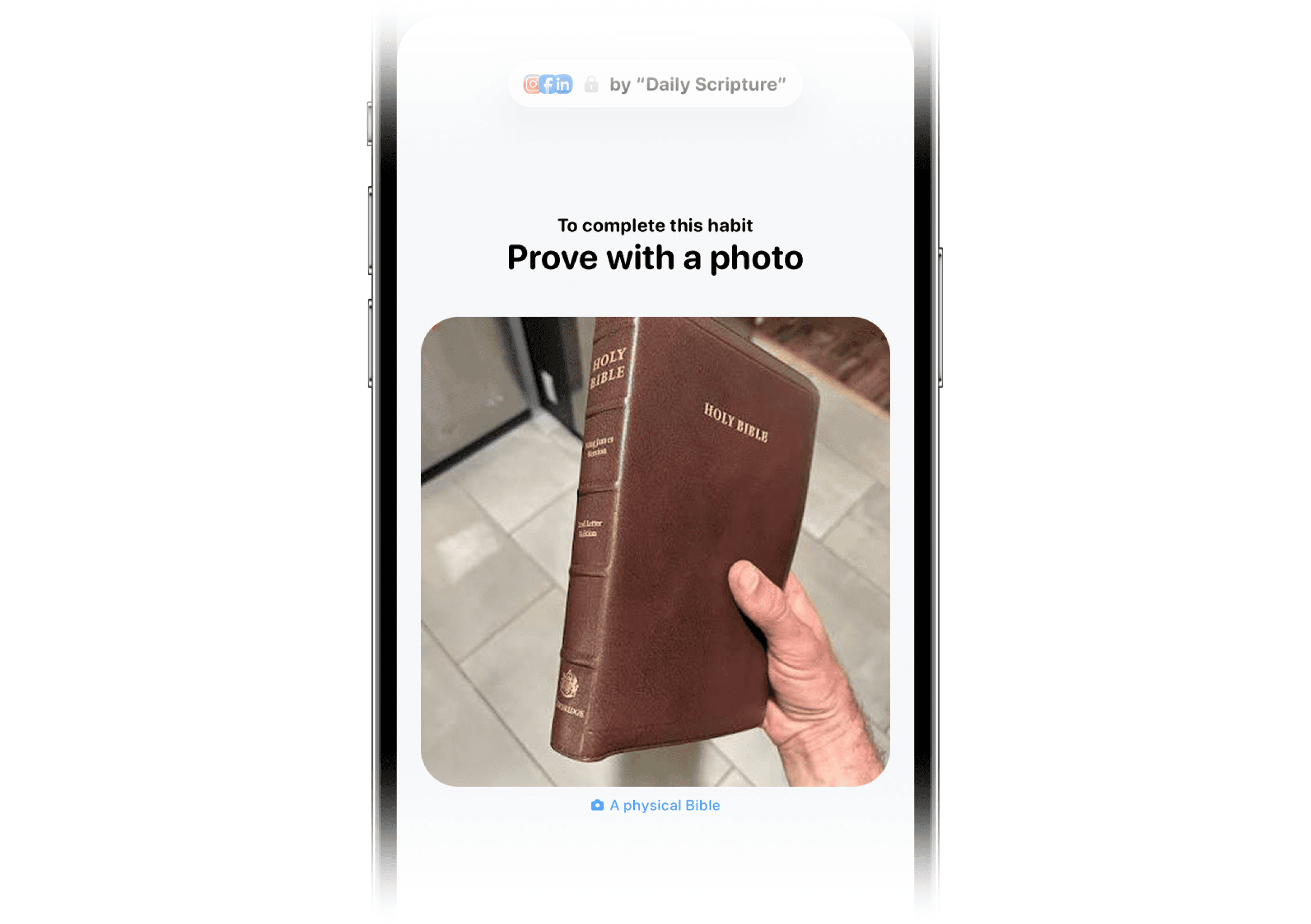
Take a picture of your physical Bible to keep you accountable.
Photo verification cannot prove that you carefully read an entire passage. It is an accountability cue, not a theological exam. Keep your Bible somewhere visible and decide in advance what “complete” means. For example, reading one chapter or spending five uninterrupted minutes with the text.
How to Make the Habit Stick
The technical setup only takes a few minutes. The harder part is keeping the rule realistic enough to use every day.
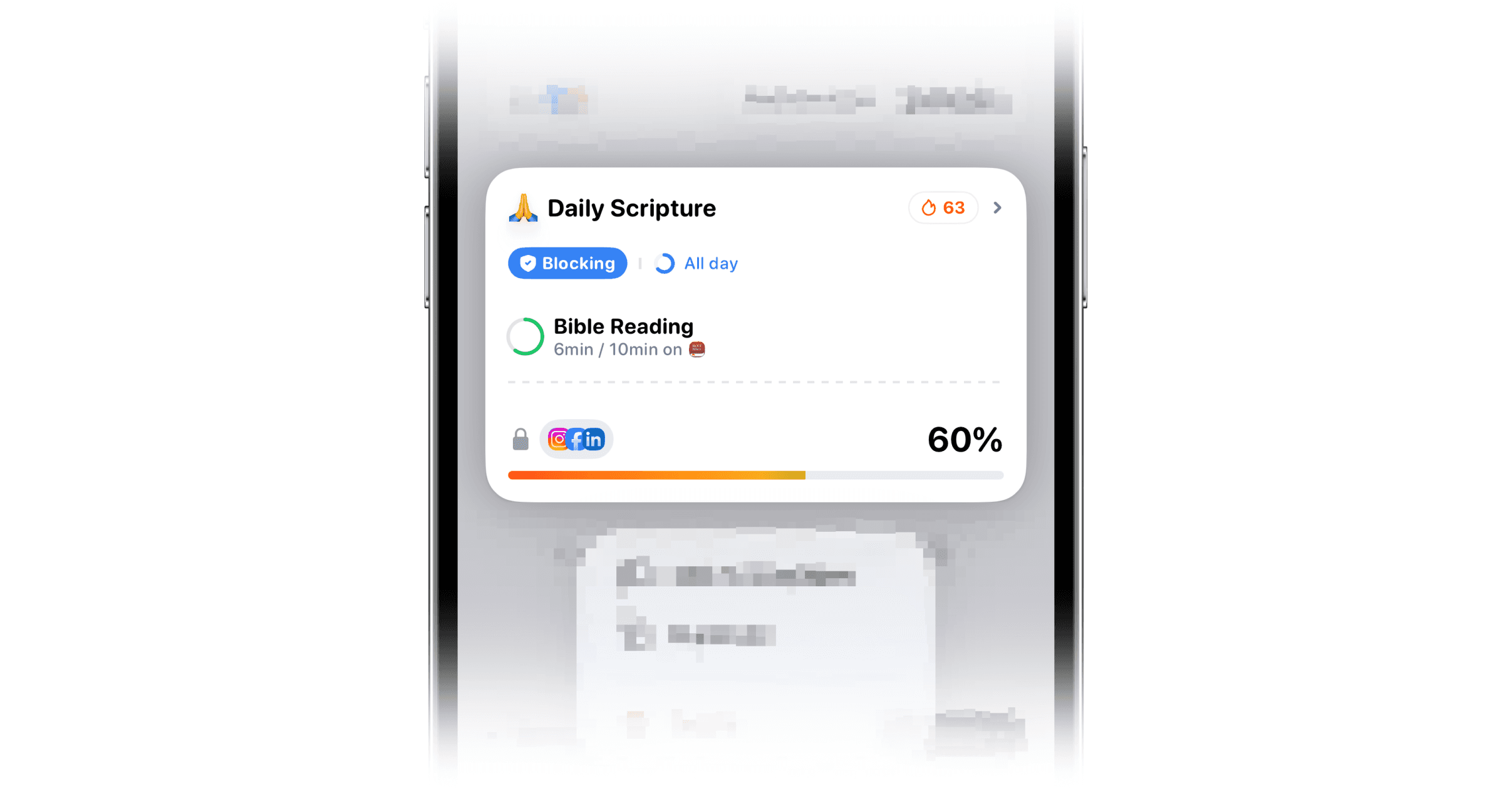
Each day you stick to this rule in Jomo, your streak grows, helping you build a lasting habit.
Start with five minutes
Do not begin with an hour-long reading goal if you currently read inconsistently.
Five minutes each day is more useful than thirty minutes once, followed by six days of avoiding the habit.
You can also use a minimum based on content rather than time:
One Psalm
One chapter of Proverbs
One Gospel passage
The verse of the day and its surrounding paragraph
Decide what counts as reading
Make the rule clear before you begin.
For example:
“I will read one complete passage and think about one sentence before opening social media.”
Without a clear definition, it is easy to open the Bible app, leave it running, and technically complete the timer without reading anything.
Jomo can create the boundary. It cannot supply your intention.
Keep the Bible visible
If you use a physical Bible, leave it next to your bed, on your desk, or beside the place where you charge your phone.
If you use a Bible app:
Put it on your first Home Screen.
Add a Bible widget if the app provides one.
Remove social media apps from your Home Screen.
Turn off non-essential social media notifications.
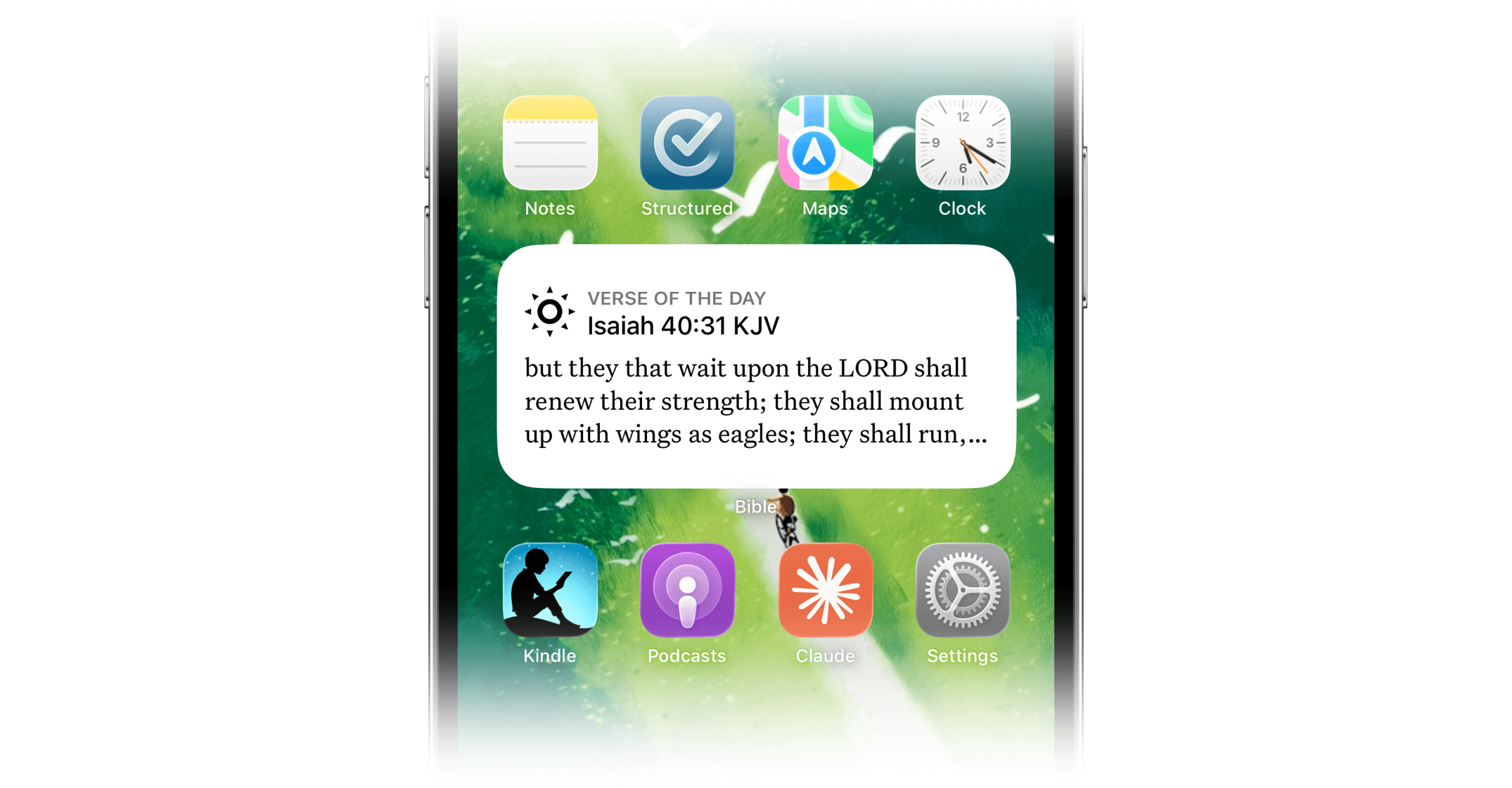
Adding a Bible widget to your home screen can be a good reminder.
The easier Scripture is to access, the less resistance you will feel when the rule activates.
Use Strict Mode if you need extra accountability
If you’re having a hard time sticking to your commitment (or you keep editing or deleting the rule when temptation hits) Jomo’s Strict Mode can help.
It prevents the rule from being changed, deleted, or bypassed, making it easier to follow through on the intention you set for yourself.
Before turning it on, make sure your Bible app and other essential apps remain accessible and that the rule works the way you expect.
A Simple Seven-Day “Bible Before Social Media” Challenge
If you don’t know where to start and just want to test the habit without making a long-term commitment, try this:
Days 1–2
Read for two minutes before opening social media.
Days 3–4
Increase the target to five minutes.
Days 5–6
After reading, write down or remember one sentence from the passage.
Day 7
Review the week:
Did you read more consistently?
Did you spend less time scrolling?
Was the target realistic?
Which apps were most difficult to wait for?
Should the rule be gentler or stricter?
Keep the setup that worked. Remove anything that created unnecessary frustration.
Start with Five Minutes Today!
You do not need to delete social media, finish an entire reading plan, or completely rebuild your morning routine.
Start with one rule:
Before I scroll, I read Scripture for five minutes.
Choose the apps that distract you, select your Bible app, and let your phone enforce the order.
Once Scripture becomes the default first step, you no longer have to make the same decision every morning.
Frequently Asked Questions
Can I block social media until I read the Bible?
Yes. With Jomo, you can select a Bible app as the habit that must be completed before your chosen social media apps become available.
Does this work with any Bible app?
Yes. You can select any Bible app you already use on your phone/ablet, then choose how long you want to use it before your distracting apps unlock.
How long should I read the Bible before using my phone?
Start with five minutes. If you currently struggle to read consistently, even one or two minutes is a valid starting point.
Consistency matters more than choosing an “impressive” target.
Can I use a physical Bible instead?
Yes. You can setup Jomo to unlock apps only after submitting a photo of an open physical Bible.
Can I choose which apps are blocked?
Yes. You decide exactly which apps and websites are affected. You can block social media, games, news, entertainment, or any other apps that distract you.
You can also choose the days and times when the rule applies.
How do I prevent myself from bypassing the rule?
Test your setup first, then enable Strict Mode. It can prevent you from editing or deleting the rule when the block is active.
Start with a realistic target before making the rule strict. If your system is too demanding, you are more likely to abandon it completely.
What happens in an emergency?
Jomo blocks only the apps and websites you select; it does not disable your phone. Leave Phone, Messages, Maps, and other essential tools outside the blocked group.
Is Jomo free?
Jomo is free to download, with optional in-app purchases. The setups described in this guide can be created without paying!
How is Jomo different from BibleMode, BibleScroll, or FaithLock?
Jomo is a general-purpose screen-time tool. Reading the Bible before scrolling is one possible setup, but you can also use it to:
Block distracting apps while working
Create a bedtime routine
Set daily app limits
Reduce doomscrolling
Earn screen time through other positive habits
Track and understand your screen time
Does Jomo work on Android?
This tutorial is for iPhone and iPad. Jomo is currently available within the Apple ecosystem, including iPhone, iPad, and Mac.